

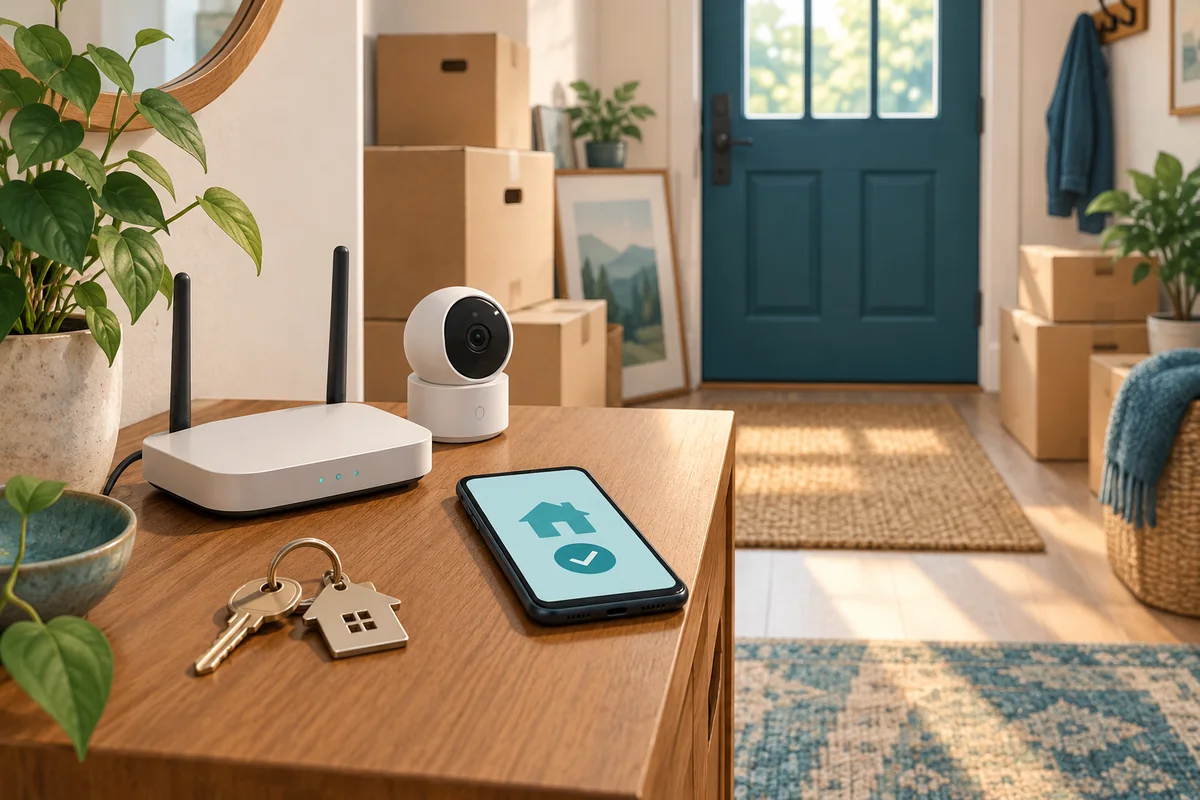
The doorbell is staying. The Wi-Fi router is going. Someone installed the thermostat a few years ago, and nobody is quite sure which account controls it. Moving already comes with enough loose ends without leaving the next household dependent on your phone.
Before you move, list what stays and what goes, follow each manufacturer's account-transfer or removal instructions, and check that the incoming household can manage the equipment through its own accounts. Handing over a device doesn't necessarily hand over its online access. Your personal account password shouldn't be part of the exchange.
I'd put this on the moving checklist while everyone still has access to the house and its internet connection. A few clear decisions now are easier than trying to sort out an account lock while the moving truck is waiting.
Start with the equipment, then find the account owner
Walk through the house and note the connected devices: doorbells, cameras, locks, thermostats, speakers, hubs and Wi-Fi equipment. Include anything in a garage, basement or outbuilding. Confirm which items are actually included in the handover before removing or resetting them.
For each item, record the make and model, whether it stays, and who has the account that manages it. Being able to watch a camera or adjust a thermostat doesn't prove someone has permission to transfer it. Ring, for example, distinguishes the account owner from shared users; only the owner can remove a device from the account. Ring's account-removal guidance.
If an installer or former household member set something up, resolve that early. Ask for the proper handover procedure and documentation. Don't solve a missing owner account by passing around somebody else's login.
Keep hardware, recordings and subscriptions separate
Think of a hypothetical sale where a video doorbell stays on the wall. There are several decisions to make: who will control it, which old recordings the outgoing household wants to keep, and who will pay for any ongoing plan. One action may not settle all three.
For Ring devices, ownership is released through the Ring app. Physically removing a device, deleting the app or canceling a subscription doesn't release it. Ring's transfer procedure also does not cancel the subscription, so check the billing arrangement separately. If the previous owner isn't available, use Ring's official ownership-request process and allow for its checks; don't assume the device will be ready on moving day. Ring's ownership-transfer instructions.
Save any recordings you want to keep before taking a step that deletes them. Ring distinguishes deactivating a supported camera or doorbell, which can retain access to existing clips until they expire under the subscription, from deleting it, which removes your access to its event history. A new owner setting up a deactivated device doesn't get the previous owner's videos. Read the confirmation screen carefully. Ring's deactivation and deletion guidance.
Treat local storage separately, too. If a camera or recorder has a memory card or drive, check that model's instructions for saving and removing personal footage before the equipment changes hands. Don't assume a cloud-account change clears every storage location.
Use the instructions for your exact device
“Factory-reset everything” sounds simple, but it skips the differences between products and accounts.
Google's Nest guidance says to remove products you're leaving behind from the Nest app and follow the relevant reset instructions. It also notes an exception: a Nest Cam removed from the Nest app doesn't need an additional factory reset. That is a specific Nest-app instruction, not a rule for every Google camera. Save wanted footage first and check subscription handling separately. Google's moving and Nest-product guidance.
Google Home has its own device-removal and home-management procedures. Deleting an entire home affects its devices and associated data; it isn't a harmless way to tidy up one device. Check which app manages your model and follow that device's process. Google Home's organization guide.
For locks, heating controls and monitored alarms, agree on a handover that keeps the home usable and protected. Arrange the appropriate installer or monitoring-company help where needed. Don't disconnect safety equipment or improvise electrical work to finish an app checklist.
Make a handover sheet you can actually use
Copy this table for each device or system. Keep it with the moving paperwork, and leave passwords, recovery codes and private recordings out of the shared copy.
| What to record | Your answer | What needs checking |
|---|---|---|
| Device and exact model | __________ | Include its room and any hub it depends on. |
| Staying or going? | __________ | Both households agree; borrowed or leased equipment is identified. |
| Who manages the account? | __________ | The person completing the handover has the necessary permissions. |
| Official procedure | __________ | Save the manufacturer's model-specific help link. |
| Footage or other data to keep | __________ | Needed copies are saved before deletion; local storage is considered. |
| Subscription or monitoring plan | __________ | Record the cancellation, continuation or new-plan decision separately. |
| Shared access and connected services | __________ | Review household members, guest access and linked apps. |
| Completion check and date | __________ | New household can manage the device; former access is removed. |
For example, a camera might be physically ready to leave behind while its account transfer is still pending. Mark that as pending, with a named next step. A checked box should mean the handover worked, not just that somebody sent an invitation.
Give the Wi-Fi its own plan
Decide whether the router and any mesh units belong to you, an internet provider or another supplier. Confirm what must be returned and what, if anything, can stay. Coordinate the internet-service change with device setup so you don't remove connectivity halfway through a handover.
The incoming household should manage its own internet account and router settings, with its own Wi-Fi and administrator credentials. If equipment is staying, follow its maker's handover or reset procedure and check any cloud-management account as well. If it's leaving, record which remaining devices will need connecting to the replacement network.
Changing a Wi-Fi password is one part of setting up the new household. Camera accounts and shared permissions need their own review, as explained in our home-camera security guide.
Check the result from both sides
Before calling the job finished, work through these checks together at the agreed handover time:
- Outgoing household: confirm each agreed transfer or removal completed, deal with subscriptions, and retain only the personal footage and documentation you meant to keep.
- Incoming household: set up the equipment through your own accounts, check who has access, and test normal use. For a camera, check your own live view and recording settings. For a lock or alarm, use the manufacturer's safe test procedure.
- Both households: confirm former users no longer have access to the transferred equipment. Record any unresolved ownership restriction and the manufacturer or installer handling it.
You don't need to become the expert on every device in the house. You do need a clear list, the right instructions and a way to tell whether each handover is finished.
If you're unsure where to start, IT MGMT's private Home IT services can help you plan the technology side of a move. Bring the device list to a Home IT consultation, and we can discuss what needs attention and which work needs a separate installer or provider. If you're also considering ongoing help after the move, see our managed Home IT options.