

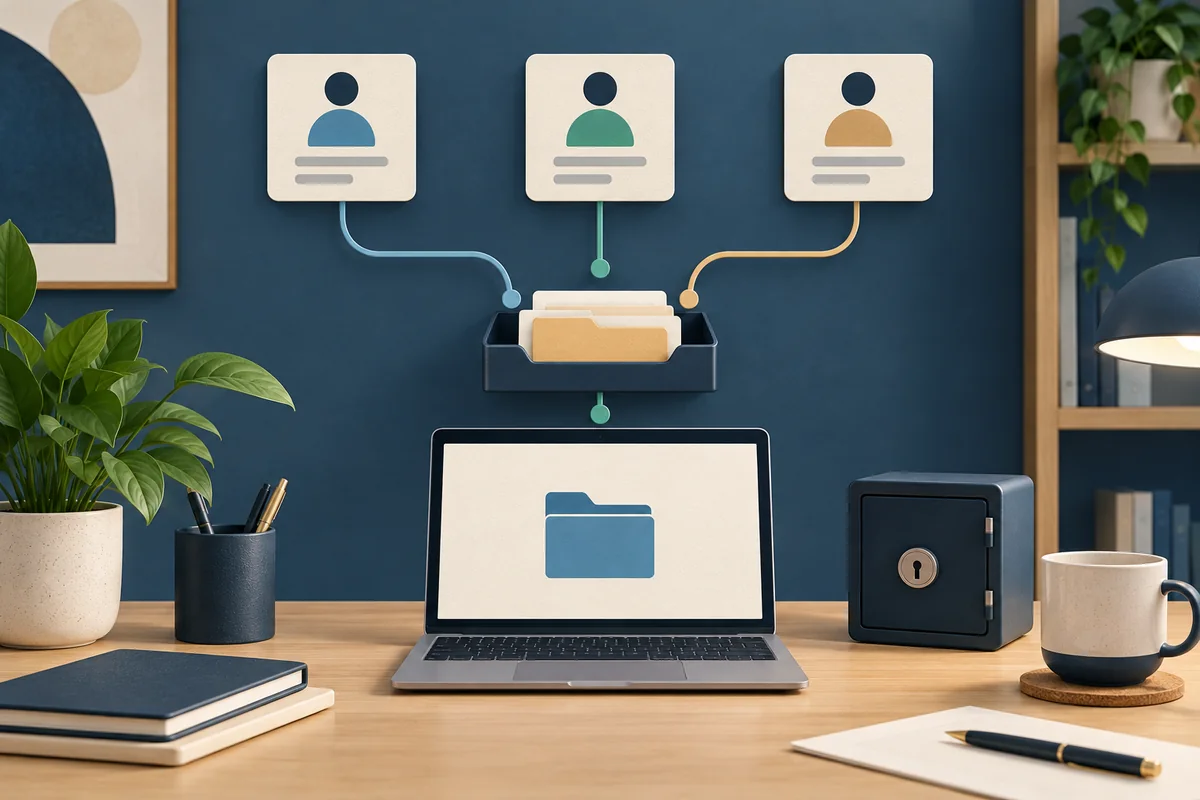
Someone needs to answer the office email, but the sign-in code went to a coworker who's on vacation. Another person changes the password, and now the rest of the team can't get in. A login that was supposed to make work easier has become something everyone has to work around.
For everyday work, give each person their own account and grant access to the shared mailbox, files or application they need. Then name someone who can manage that access and a backup who can help when they're unavailable. A shared email address can still be useful. Everyone using the same password is a different arrangement.
I want to make that distinction practical for a small business. You don't need to replace every system at once. Start with one account your team depends on, and check whether the way you share it actually supports the work.
Share the work through individual accounts
A named account belongs to one person for their work, such as an employee's company email account. Permissions decide what that person can open or change. Several people can have permission to use the same business resource while signing in separately.
That gives you a clearer way to add someone, change their responsibilities or remove their access. It also makes activity records more useful when the application provides them. It doesn't guarantee that every action is logged, so ask what your particular system records and how long those records are kept.
Consider a hypothetical property management office with three people answering maintenance requests. They need the same incoming messages, but they don't all need permission to change the company's billing settings. Separate accounts let you make those decisions independently.
A shared password blurs that distinction. It can also create a practical availability problem: Google says its accounts are intended for one person, and frequent shared sign-ins can trigger challenges or temporary lockouts that affect everyone using the account. Google's account-sharing guidance explains the limitations.
A shared mailbox doesn't require a shared password
In Microsoft 365, an address such as maintenance@ can be a shared mailbox. Authorized staff open it through their own accounts. Microsoft says the shared mailbox's associated account should remain blocked from direct sign-in; staff shouldn't be given a password for it.
Each person accessing it needs a licensed Exchange Online mailbox. Additional licensing can apply to the shared mailbox depending on storage and features, so check the actual requirements before removing or changing a license. Microsoft explains shared-mailbox access and licensing.
Gmail offers delegated access: authorized people can manage email from their own accounts without sharing the mailbox password. Delegation is an email permission, not access to everything in the owner's Google Account. For work accounts, the administrator needs to allow it, and delegates must be within the organization. Google explains delegation and its limits.
Whichever platform you use, test the everyday details. Can the right person read a request and reply from the right address? Can the next person see what was already answered? Who checks that something hasn't been missed? Access settings support a process; they don't assign responsibility for a customer's message.
Separate daily work, administration and recovery
The person approving an invoice usually doesn't need to change everybody else's access. Give people the permissions their jobs require, and keep powerful administrator access separate from routine email and browsing. Our small-business zero-trust guide explains that broader approach.
For each important system, I would identify three responsibilities: who uses it, who approves access changes, and who can help recover access. One person may cover more than one responsibility in a small team, but the business shouldn't depend on that person being reachable every minute.
Multifactor authentication, or MFA, adds another check when someone signs in. Set up each person's supported sign-in methods rather than making the whole office ask one coworker for a code. Discuss recovery before a phone is lost, replaced or unavailable.
Emergency administrator accounts need their own design. For Microsoft Entra, Microsoft recommends two or more emergency access accounts, strong authentication, secure credential storage, monitoring and regular tests. These are for exceptional situations when normal administration is unavailable. Have your provider follow the current Microsoft emergency-access procedure; don't improvise an unprotected administrator login or turn off MFA to make sharing easier.
Make a one-page access map
Choose one system and fill in the answers below with your manager and IT provider. Record people, responsibilities and secure storage locations, not passwords, recovery codes or security-key secrets. Keep the completed map private to the people who need it.
| Question | What to record |
|---|---|
| What work depends on this system? | The application or mailbox, and the task that would stop without it |
| Who should use it? | Named staff and the permissions each role needs |
| Who owns the decision? | The business contact who approves access, plus the administrator who implements it |
| Who can cover an absence? | An authorized backup and the work they can perform independently |
| How is access recovered? | The approved recovery process and where protected instructions are stored |
| What did we actually test? | A normal task completed by the backup person, the date and any remaining gap |
For the hypothetical property office, a useful test would be the backup staff member opening the maintenance inbox through their own account and responding to a harmless test message. They shouldn't need the absent coworker's password or phone. Agree on the test beforehand, and avoid changing real customer records just to prove access works.
Replace one shared login without breaking the workflow
Before changing credentials, check what uses the account. An old scanner, website form or scheduled integration might depend on it. Those automated connections need their own supported setup; moving people to named accounts doesn't automatically migrate them.
Use this sequence with the person responsible for the system:
- Confirm the supported options. Check named users, delegated access, roles and licensing with the vendor or administrator.
- Prepare the replacement access. Set up the right people, permissions, sign-in protection and recovery arrangements.
- Test the real work. Verify reading, replying, editing or approving as appropriate, including the backup person's access and any connected devices or automation.
- Retire the old access deliberately. After the tests pass, have the administrator handle the old credential, existing sessions and integrations using that platform's controls. Preserve needed information.
- Write down the result. Record what's finished, what's still shared, who owns the exception and when it will be reviewed.
Some older systems genuinely lack separate user access. If that's your situation, document the limitation and check the vendor's permitted use. An approved business password manager with restricted access may help control an unavoidable shared credential, but it won't create individual audit records inside an application that only sees one login. Treat that as an exception with an owner and review date.
Start with the account that causes the most interruption
You don't need a company-wide migration to make the first improvement. Pick the login that repeatedly sends someone looking for a password, an approval or another person's phone. Use the access map to agree on what should change and who will verify it.
When someone is actually leaving, use our separate employee-offboarding checklist for the departure and information handoff. This access review is something you can do while the whole team is still working together.
IT MGMT helps businesses of 5–100 users make practical plans through managed IT support. If you aren't sure who controls your essential accounts or how your team would recover access, book a Business IT consultation. Bring a list of the systems you depend on, without credentials, and we can discuss the priorities.