

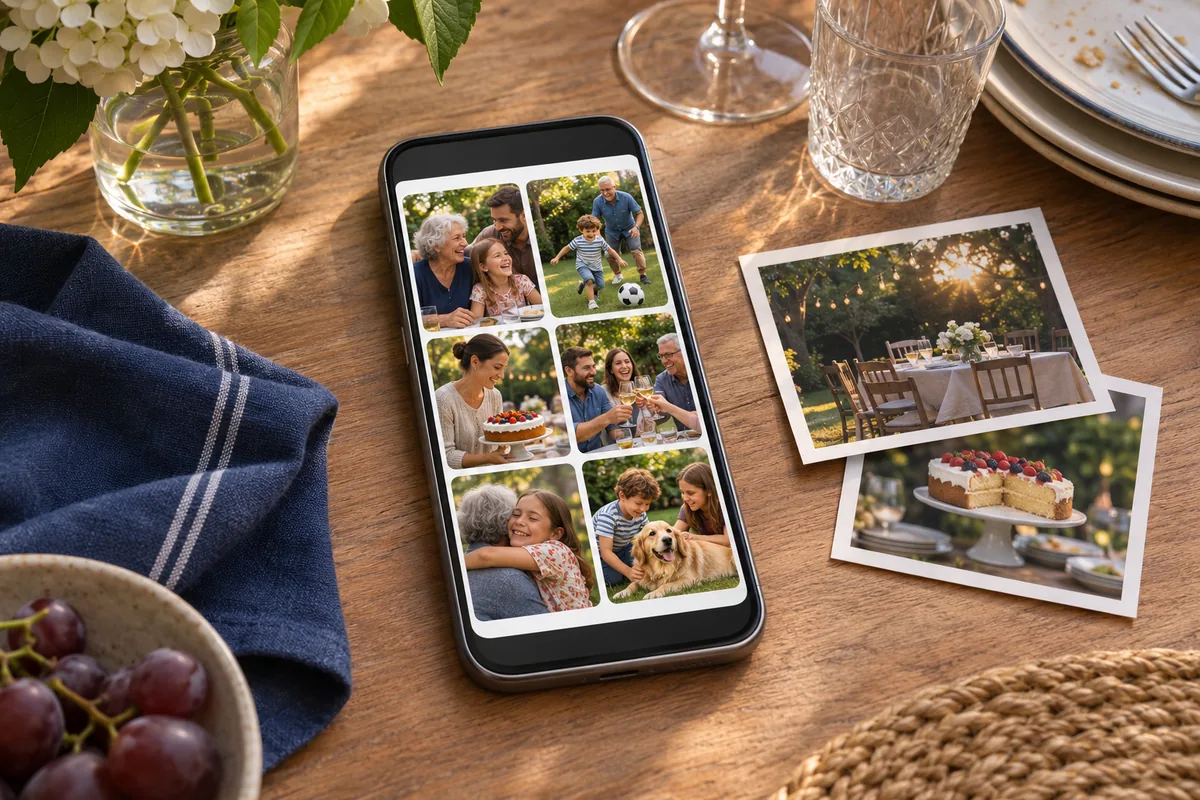
The day after a family gathering, someone usually wants the group photo and someone else has a whole camera roll to share. A shared album is an easy way to put those pictures together. Before you send it, decide who you want to be able to open it.
For a family-only album, I’d invite people individually or require approval to join. Then I’d check the album’s access settings. A link you send in a private text can still travel, and what the next person can do with it depends on the album settings.
Choose who can join in Apple Photos
On iOS 27 and iPadOS 27, Shared Albums can require approval or allow anyone with the link to join. For family pictures, choose the option that limits access to people you invite or approve. Review the participant list before adding more photos.
On older Apple software, you can invite subscribers directly. If you see Public Website in the album settings, leave it off for a family-only album. Turning it on publishes the album to a website people can open in a browser. Apple shows the different screens and controls by version. Apple’s Shared Albums guide
Check the member list and link in Google Photos
Invite the people you want by their Google accounts and turn Link sharing off. This closes access through a forwarded album link. Google says people who already have access can still add others, so check the member list from time to time. If you only want people to view the photos, turn off Collaborate too. Google’s guide to shared album privacy
If you’ve already sent an open link, turn off link sharing and review who has joined. Remove anyone you no longer want in the album. Save any photos from that person you want to keep first, because Google can remove their contributions when you remove them. Google’s guide to changing or stopping sharing
A quick check before you send
- Pick the photos. Look for things in the background that you’d keep private, like a piece of mail on the counter or a school name on a bag. Ask before sharing a picture someone might want kept within a smaller circle.
- Check the names. Confirm you’re inviting the right contact and account, especially when a relative uses more than one email address.
- Check what the link allows. If you have a link, try it in a signed-out browser or with an account you haven’t invited. If the photos open immediately, review the sharing options before sending it. This is a quick check for an obvious open link. Use the participant list to check who already has access.
- Keep the pictures you want in your own library. Turning off sharing can stop future access to the album. People can still keep photos they previously saved. Make sure you have separate copies of pictures you want to keep, especially if a relative uploaded them. Apple’s guidance on saved copies · Google’s guidance on saved copies
If the family album reminds you that you only have one copy of your own pictures, try our family photo backup check. If you’d like help with household technology, see our Home IT support options or book a Home IT conversation.