

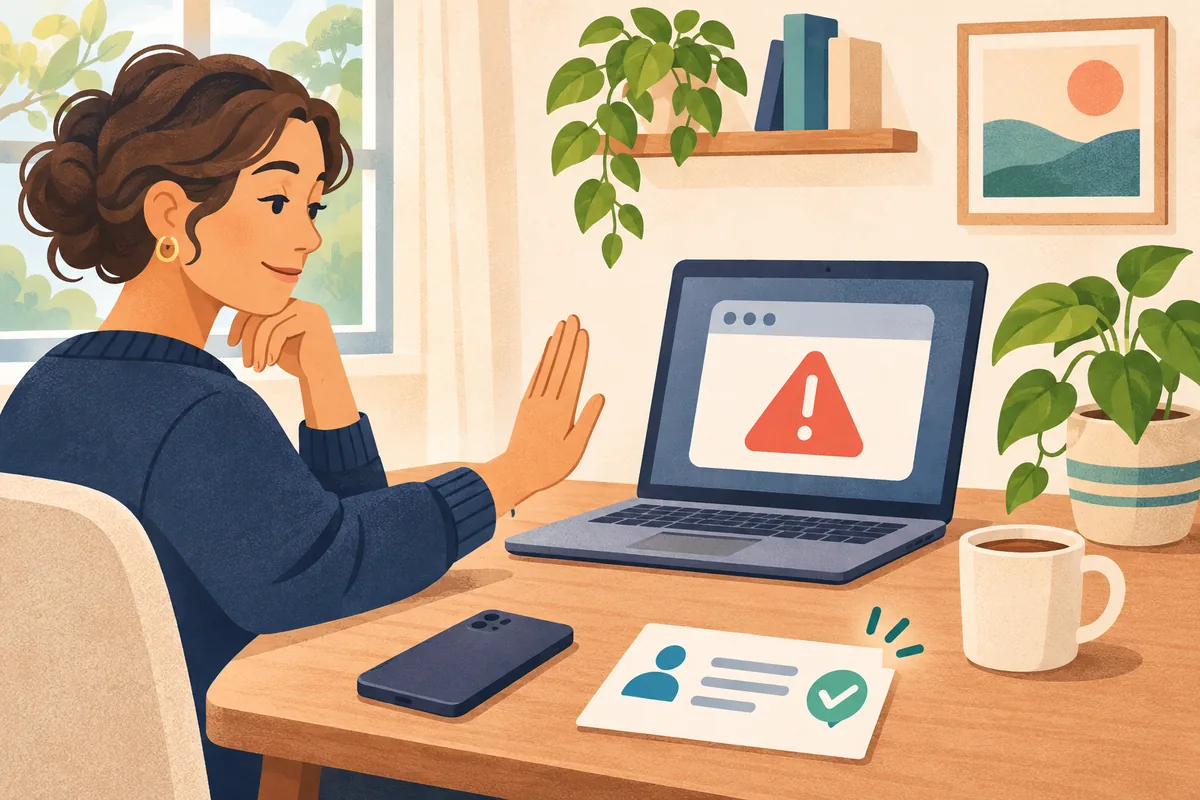
You're checking a recipe, reading the news or looking something up for school. Suddenly a warning fills the screen. There might be an alarm, a familiar company logo and a phone number you're told to call immediately.
Don't call the number in the warning, install the software it suggests or give someone control of your computer. Close the suspicious browser window if you can, then contact someone you already know through a trusted route. A frightening message is a reason to check what happened, not proof that the person behind it can help.
I believe getting help with technology should make a household feel more confident. Nobody should have to decide whether a stranger is trustworthy while an alarm is telling them everything is going wrong. Here's a calm way to handle that moment.
Start with where the warning came from
A webpage can imitate a computer error. Microsoft explains that fake support warnings can fill the screen, play alarming sounds and appear to prevent you from closing them. It also says its genuine error messages don't include a phone number to call. A recognizable logo doesn't establish who is behind a warning. Microsoft's guidance on online scams
That doesn't mean every security notification is fake. It means you shouldn't use a suspicious notification as your route to support. Open your security software through its normal app, or use a support contact you've independently verified.
For example, imagine a household laptop displaying a message that says support must connect right away. The useful question is: “Did we ask this person for help through a contact we trust?” The wording on the screen can't answer that for you.
Close the page without following its instructions
Try the browser's own window or tab controls, rather than a button drawn inside the warning. Apple cautions that some ads use fake close buttons. Its Safari guidance recommends closing the window or tab when you're unsure. On a Mac, holding Shift while reopening Safari prevents previously open windows and tabs from reopening automatically. Apple's pop-up guidance
On Windows, Microsoft suggests Alt + F4 if you can't close the browser with the mouse, and restarting if the browser still won't close. Closing an application or restarting can lose unsaved work. If you're uncertain, stop and get trusted help instead of experimenting with the warning's buttons.
Closing a page stops that interaction; it doesn't establish that the device is clean. Downloads, remote access or recurring warnings deserve a separate check.
Make a small household support card
I recommend agreeing on the next step before anyone needs it. You don't need to turn the living room into an IT department. A short note beside the computer, with a copy stored somewhere easy to find, can remove a lot of uncertainty.
Fill this out together using contacts you already trust:
| Write down | What your household should agree on |
|---|---|
| First person to contact | A trusted adult, family helper or existing support provider. |
| How to reach them | A saved number or independently verified website, not one supplied by a warning. |
| If they don't answer | A second trusted contact and permission to leave the computer alone while waiting. |
| What to explain | Which device you were using, what appeared and what you clicked or installed. |
| What stays private | Don't put passwords or recovery codes on the card. |
Try a simple practice conversation: “A warning says I have to call someone. What do I do next?” Let each person explain the plan in their own words. Nobody needs to visit a suspicious site or create a convincing fake warning to practice.
The most useful household rule is that asking for help won't get someone in trouble. A child, parent or grandparent should feel comfortable saying, “I clicked something, and now I'm not sure.”
If you already spoke to someone
Be clear with your trusted helper about whether you only saw the warning, downloaded something, shared a password or allowed remote access. Those are different situations. Don't assume closing the tab reverses something you already allowed.
The FTC recommends updating your security software and running a scan if you suspect a computer problem. It also advises changing a password you disclosed, including anywhere else you reused it, and provides separate recovery steps for shared information, computer access or payments. Follow the steps that match what actually happened. FTC guidance on tech support scams and recovery
You can also report the attempted scam through the FTC's linked reporting route. You don't need to keep talking to the person behind the warning to investigate it yourself.
Have a familiar place to ask
IT MGMT provides Home IT support and protection for households, separately from our Business IT services. If you're unsure where to begin, we can discuss your devices, current protection and the support arrangement that fits your home. Coverage and any cleanup work depend on the agreed service scope.
If you're already a client, use your established support channel. If you're planning ahead, book a Home IT conversation. Bring the questions your household actually has, including who to contact when a message on the screen doesn't feel right.